
Help & Support
For your business.
Connect your number, make your first call, and keep the next step in view. Find practical help for the current web dashboard.
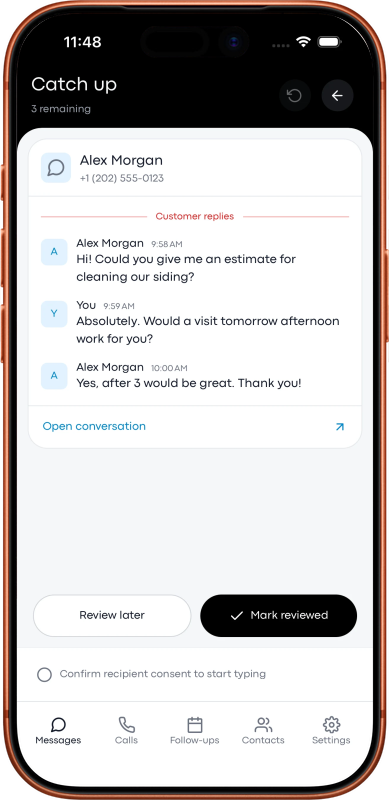
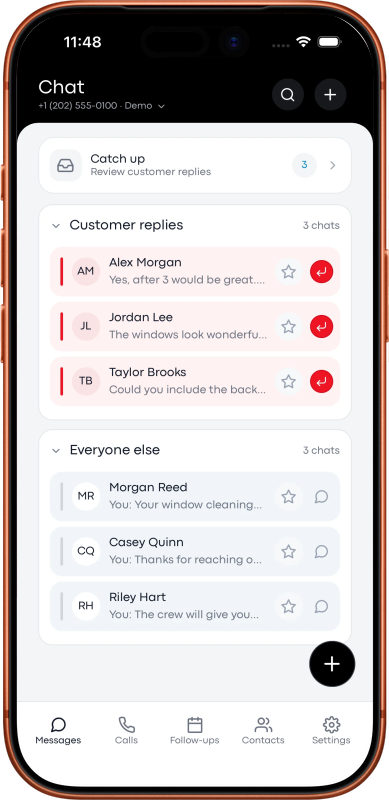
Mobile app images on the overview are previews. These instructions describe the web dashboard.
Setup, calling, messaging, and account help.
Start with your first business number.
- Create your Voice account and choose a plan. A complimentary invitation still requires your own Twilio account and separate Twilio usage charges.
- Open setup and connect Twilio. Simple setup uses your Account SID and Auth Token to create a dedicated standard API key and browser-calling application.
- Save the business number and your everyday bridge phone, including the correct country.
- Open Calls & Texts, select the business line, and make an agreed test call. For a phone-bridge call, answer your phone and press 1.
Recording is optional and requires the appropriate consent. Voice is not an emergency-calling replacement.
Connect Twilio and manage credentials.
Simple setup: enter your Twilio Account SID and Auth Token in Voice setup. Voice creates a dedicated standard API key and browser application. Existing manual connections can use Enable browser calling automatically in setup.
Advanced setup: use your US1 Account SID, Auth Token, API Key SID (beginning SK), and API-key secret. Prefer a dedicated restricted key with these permissions:
- Phone numbers → Active numbers: List.
- Voice → Calls: Create, Read, and List.
- Voice → Recordings: Read and List. Calls → Recordings is not a substitute.
- Messaging → Messages: Create, Read, and List.
- Messaging → Messages → Media: Read and List.
Your Auth Token remains sensitive even with a restricted API key. Never put secrets in messages, screenshots, or frontend code. API-key secrets are shown once; create a replacement if you lose one. Update and test Voice before retiring the old key.
Loading your numbers proves only that number access works; calls, messages, and recordings may still need their own permissions.
Open the illustrated Twilio setup guideCall through your everyday phone.
- Choose the business line in Calls & Texts, then Calls → Call my phone.
- Select the recipient country and phone number. Check your saved bridge phone.
- If recording is needed, enable it and confirm consent.
- Start the call, answer your everyday phone, and press 1 to connect the customer.
- Refresh call history after the call finishes.
The customer sees your selected business number. Two call legs may appear as separate records, and Twilio charges for both. Standard outgoing bridge calls do not change your incoming forwarding, greeting, or voicemail.
Call with a browser and headset.
Complete the Twilio connection first. Simple setup prepares browser calling automatically; an older manual connection can use Enable browser calling automatically in setup.
- Choose your business line, then Calls → Use browser & headset.
- Choose the recipient’s country and number, then Call from browser.
- Allow microphone access. Use the mute, keypad, and end-call controls as needed; keep the page open and connected.
Your everyday phone will not ring and there is no press-1 step. Browser recording is currently off, calls are limited to one hour, and Twilio charges for browser audio and the customer call.
Receive calls temporarily
Choose Receive calls in this browser, select one hour, four hours, or until turned off, and enable it. Keep Voice open and connected. Answer in the headset or decline to the normal flow.
This temporarily changes the selected number’s incoming Voice route and saves the existing webhook or TwiML flow. Unanswered calls return to that normal flow after about 10 seconds. Detecting an offline browser may take about a minute. Turning it off restores the saved route unless settings were changed elsewhere; an answered call can finish. Text routing is unchanged.
SIP-trunk numbers or numbers without a normal webhook need separate setup. Test actual audio, caller ID, and charges before relying on browser calling.
Open the browser-calling setup guideSend texts, view replies, and open photos.
- Select a messaging-capable business line and open a conversation or add a recipient.
- Write your message. To use a saved response, type its /shortcut and press Tab, then review the inserted text.
- Confirm recipient consent and send. Honor opt-outs.
- Refresh to retrieve the latest incoming messages. Select an incoming photo to enlarge it.
On mobile web, use Conversations to return to the list. Messaging requires the right Twilio number capabilities, permissions, balance, and registration. A test text is optional if you only need calling.
Queued or sent does not mean delivered. Check Twilio delivery details when a text does not arrive. Demo conversations and suggested replies are fictional; live mode uses your connected account.
Save a name for the next conversation.
Account owners and paid Voice subscribers can save or edit names from a conversation or the contact column in follow-ups. Search by name or phone number. Clear the name to remove it.
Saved Voice names are scoped to your account and business number. Editing one does not change a lead record or Twilio. A matching organization lead on the assigned number takes precedence unless names conflict, when the Voice name is used.
Trial and complimentary access may show an upgrade prompt; this feature unlocks after payment.
Save a draft. Send it when you are ready.
Follow-ups are available to account owners and paid Voice subscribers. Voice-only trial and ongoing complimentary access do not include them. From a conversation or Write Text Follow-up on a call, write the draft, add an optional title and due date in your local time, then save.
Saving sends nothing. Follow-ups do not automatically send texts or reminder notifications.
- Review upcoming, past-due, and completed follow-ups, with the full draft and days remaining.
- Choose Load draft to see the conversation context. Load older Twilio messages if needed.
- Edit the message, confirm consent, and choose Send Text.
- Mark the follow-up complete after sending. Closing it leaves it pending; you can also edit or delete it.
Voice stores the title, draft, due date, and Twilio identifiers used to look up the recipient, not a separate recipient phone field for the follow-up. Deleting source records in Twilio can break that lookup.
Find and play available recordings.
Select a business line and open Recordings. Recent Twilio calls show date, time, contact or number, status, and duration, including calls made outside Voice. Choose Check recordings to inspect connected call legs, then play the waveform or download an available MP3.
The recent list can include up to 50 incoming and 50 outgoing calls. Connected legs may appear as separate rows. Not every call has a recording, and newly completed recordings may still be processing.
The key needs Read and List permissions for both Calls and Voice Recordings. Enable phone-bridge recording only with required consent. Browser recording is currently off. Demo audio is fictional and plays only when you start it.
Check country settings before you call.
Choose United States, Canada, or Australia for each number. Canada and Australia are pilots pending real-carrier testing. US1 is the API region, not the number’s country.
- Use an upgraded, funded Twilio account. Trial restrictions may block destinations.
- Enable Voice geographic permissions for both the bridge phone and customer destination. Messaging permissions are separate.
- Confirm Voice and SMS capabilities and complete any identity, address, or messaging registration Twilio requires.
- For the US and Canada, both use +1, but choose the correct country. For Australia, use the local 0 format or +61 as supported by the input.
- An Australian voice-only landline cannot send texts.
Test an agreed text and reply, refresh messages, then call, answer, and press 1. Confirm audio and caller ID. Test recording only with consent. Twilio charges both bridge legs; your mobile plan may charge for receiving calls or roaming.
When something is not working.
Your phone does not ring
Check both countries and numbers, Twilio balance, Calls Create permission, geographic permissions, trial restrictions, and Twilio’s call log. Review recent calls before retrying.
The browser cannot use your microphone
Allow microphone access, select the right input device, unmute it, and keep the page connected. Check the API-key and browser-application setup if the connection reports an error.
Numbers, history, or recordings are missing
Confirm the connected Twilio account, refresh, and check the required List and Read permissions. Recordings require their own Voice Recordings permissions.
A text has not arrived
Check SMS capability, Messages Create permission, balance, A2P or toll-free verification where required, and Twilio’s message log. Sent status alone is not delivery confirmation.
Service is paused
Open billing to review payment or account status. For complimentary access, contact the person who invited you. Help remains available while calling or texting is paused.
A few useful terms.
- Business number
- The Twilio phone number you select for calls and texts.
- Bridge phone
- Your everyday phone, which Voice calls first in the phone-bridge flow.
- Call leg
- One connection in a call. A phone bridge connects a leg to you and a leg to the customer.
- Account SID
- The identifier for your Twilio account.
- Auth Token / API secret
- Sensitive credentials used to authorize the connection. Keep them private.
- Webhook / TwiML application
- A configuration that tells Twilio how software should handle a call or event.
- Follow-up
- A saved draft with a due date for you to review and send manually.
Still need a hand?
Email support@leadtocrew.com. Include what you tried, approximately when it happened, and the visible error. Do not include passwords, Auth Tokens, API keys, or card details.